Getting started
From new account to an active plan
Six steps, all of them in the MetroPaws app. You create an account, add your pet, pick a plan, and pay by scanning one QR Ph code with the bank or wallet app you already have. No card, and no receipt to send us.
Step by step
Create your account
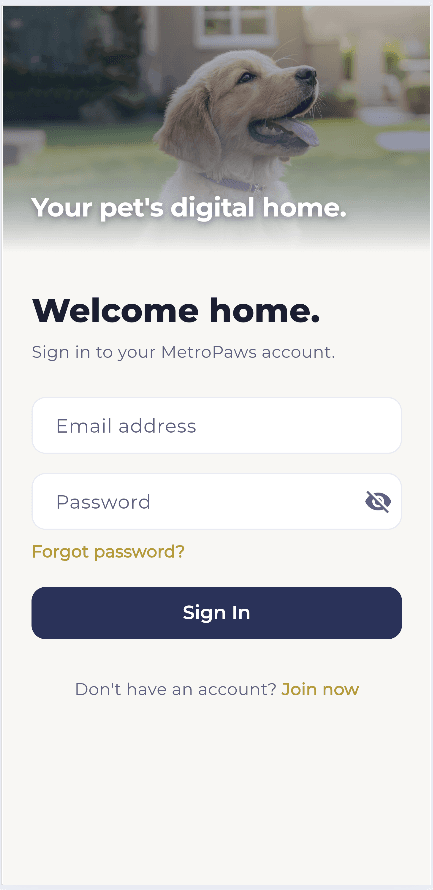
Install MetroPaws from Google Play, then tap Join now on the sign in screen. Registering and adding your pet cost nothing. You only pay when you activate a plan.
Add your pet
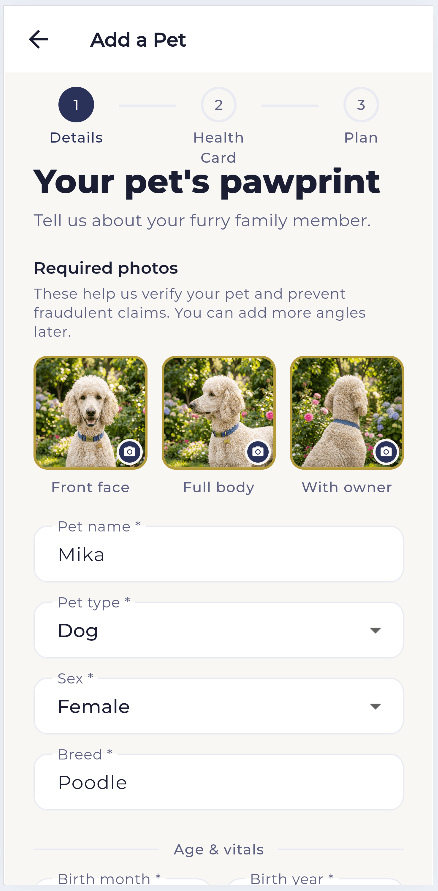
Adding a pet runs in three short steps: details, health card, then the plan. The three photos on the first step are required. They are how we verify a claim later.
Choose a plan on the last step
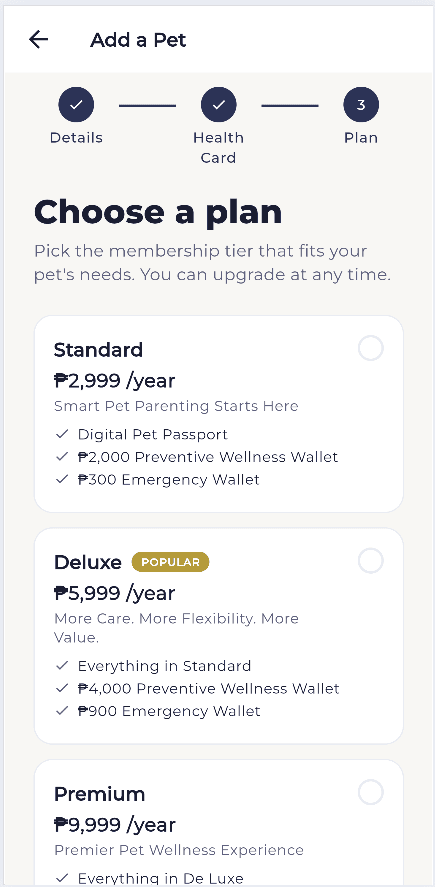
Standard, Deluxe, or Premium, picked as you finish adding your pet. Each one lists the wellness and emergency benefit it carries, and you can upgrade later without losing what you have already used.
Tap Complete Payment
The app confirms your pet is saved and leaves one button to press. Nothing is charged until you go through it, so you can come back to this later from your pet's card.
Scan the QR Ph code
Your total appears with nothing added on top, next to a countdown that starts at about 30 minutes. Open GCash, Maya, BPI, GoTyme, Home Credit, and any bank app that supports QR Ph, then scan the code on screen. If the countdown runs out, nothing is charged and you can start again.
Paying on the same phone?
A phone cannot scan its own screen. Screenshot the code first. Then in your wallet app, tap Scan QR and choose that screenshot from your gallery.
The checkout screen, drawn rather than photographed: a real one carries a live code. Your plan activates by itself
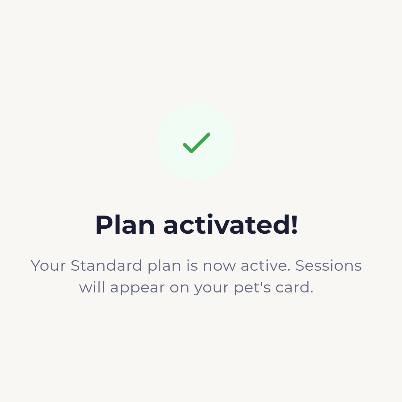
There is no proof of payment to send. The app confirms it the moment the payment clears. If you do not see it yet, close the app and open it again.
If something looks wrong
- The code ran out before I paid.
- Nothing was charged. Open your pet's card, tap Complete Payment again, and a new code appears.
- I paid but my plan is not showing.
- Close the app and open it again. It rechecks your payment every time it loads, so a plan that was paid for will appear on its own. If it is still missing, send us the reference number from your GCash or bank receipt at csr@metropaws.ph and we will sort it out.
- Do I need a credit card?
- No. QR Ph works straight from e-wallet and bank apps, so you can pay without a card at all.
- Can I add a second pet?
- Yes. Add another pet from your dashboard and it runs through the same three steps, with its own plan and its own payment.
Then your pet has a card
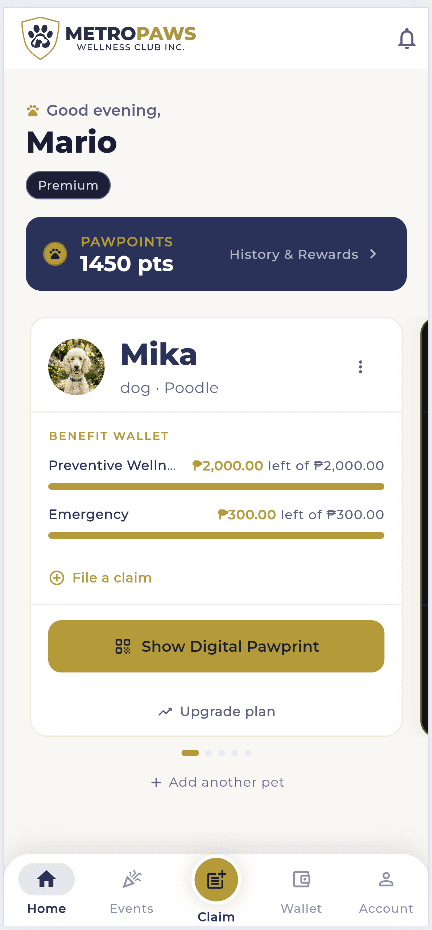
Once the plan is active, your pet's card carries both benefits, what is left in each to the peso, and the QR Pet ID you show at the clinic.